
Appearance
Project Health dashboard
The Mass Forge Project Health dashboard is the project-wide preflight for Mass Forge authoring. Open it from Tools > Mass Forge Project Health. It scans project-owned Mass Forge assets beneath /Game, checks the configured global schemas, and turns validation failures into searchable rows with direct Browse and Open actions.
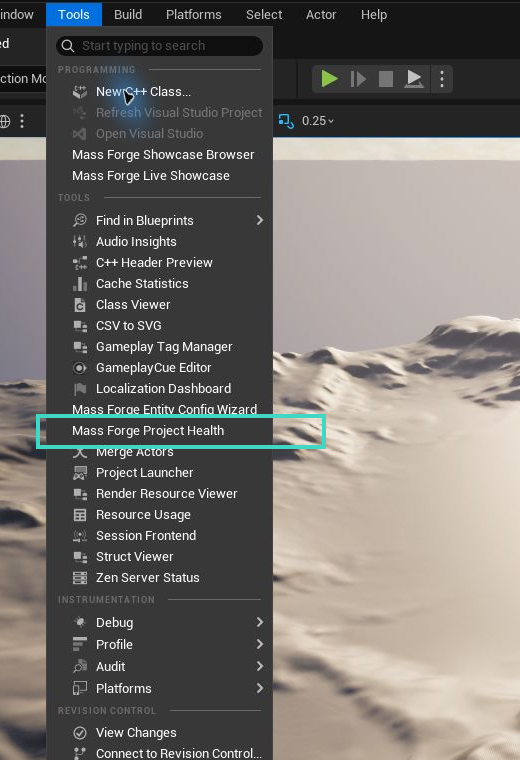
Open the dashboard from Unreal's standard Tools menu. Run it after changing schemas or gameplay assets and before producing a release build.
The dashboard is an editor-only tool. It does not add runtime fragments, load gameplay assets in packaged builds, or change an entity. A scan is read-only and runs once when the panel opens or when Scan Project is selected.
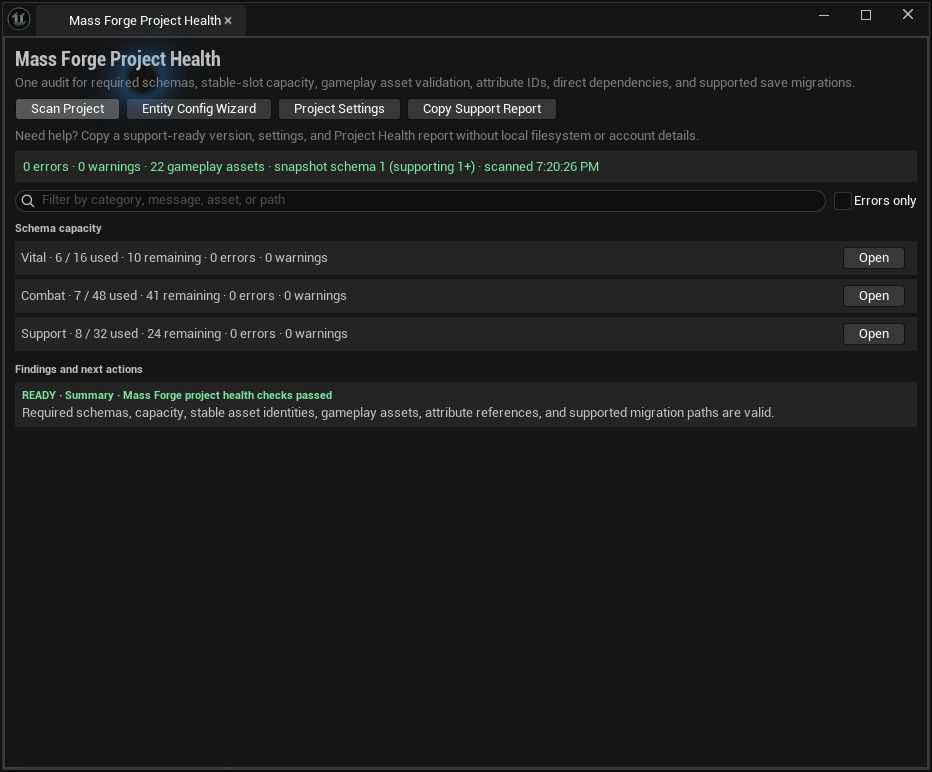
A release-ready scan is explicit: zero errors, zero warnings, every configured schema within capacity, and a green summary. This disposable UE 5.8.2 validation host contains 22 project-owned starter gameplay assets beneath /Game; shipped plugin examples beneath /MassForge are still validated separately by the release commandlet.
Support report
Select Copy Support Report to perform a fresh scan and copy a support-ready text report. The same action is available through the editor console command MassForge.CopySupportReport.
The report includes the Mass Forge and Unreal Engine versions, platform/OS/build configuration, project name, health summary, schema capacities, complete findings, snapshot-version window, and configured runtime queue limits. It does not collect local filesystem paths, usernames, machine names, account data, saved-game contents, or live gameplay state. Windows absolute paths and exact machine-identity strings are redacted even when they occur inside project-authored validation text. Asset names and remaining validation details are included, so review the report before sharing it.
Use the report with SUPPORT_REQUEST_TEMPLATE.md and follow SUPPORT_POLICY.md. Current product boundaries are tracked in KNOWN_ISSUES.md.
What a scan checks
Required schema setup
Vital, Combat, and Support schemas are all required. A missing or unloaded configured schema is an error. Use Project Settings to open Project Settings > Mass Forge > Global Attribute Schemas, or use Entity Config Wizard to create and register only the missing schemas.
Every configured schema receives a capacity row showing:
- entries used and the domain maximum;
- remaining stable slots;
- blocking schema errors;
- near-capacity warnings.
The dashboard reuses the same analysis shown in the schema's Details panel, so duplicate names, empty names, duplicate or invalid slots, non-finite values, invalid clamp ranges, defaults outside bounds, and over-capacity schemas have one definition across both tools. A schema warns when two or fewer slots remain.
Gameplay asset validation
The scan discovers these project assets recursively beneath /Game:
- Mass Forge Ability;
- Mass Forge Instant Effect;
- Mass Forge Persistent Effect;
- Mass Forge Damage Definition;
- Mass Forge Derived Attribute Profile;
- Mass Forge Regeneration Profile;
- Mass Forge Attribute Snapshot Migration;
- Mass Forge Ability Targeting Policy subclasses.
Each asset runs its native Mass Forge validation. Ability, Instant Effect, and Persistent Effect references are also resolved so stale effect or policy paths become direct Asset References errors.
Stable asset identities
Project Health groups every discovered Mass Forge Primary Data Asset by its complete Primary Asset ID: asset type plus its authored stable ID. Two assets of the same kind may not claim the same identity. A collision is a blocking Stable IDs error on every conflicting asset and lists the full conflict set, so searching by stable ID or by any asset name finds the problem.
The check covers abilities, Instant Effects, Persistent Effects, Damage Definitions, derived-attribute profiles, regeneration profiles, snapshot migrations, and targeting policies. The same text may intentionally appear in different Primary Asset types—for example, an Instant Effect and Persistent Effect can both use Status.Burning—because the complete identities remain distinct.
An asset's Content Browser name and path are presentation/organization; its authored AbilityId, EffectId, DamageId, ProfileId, MigrationId, or PolicyId is its durable gameplay identity. Renaming or moving the Unreal asset therefore preserves its Primary Asset ID. Changing the authored ID is an identity migration and must follow VERSIONING_AND_UPGRADES.md, including all project-owned save, UI, telemetry, Blueprint, and code references.
Attribute references
The dashboard checks active attribute-ID fields against the currently configured schemas. Coverage includes:
- ability costs and requirements;
- instant-effect target modifiers and optional source/target magnitude captures;
- persistent-effect lifetime modifiers and optional magnitude captures;
- damage Health and every enabled Shield, Power, mitigation, and critical attribute;
- derived-rule targets and source terms;
- regeneration targets and enabled rate attributes;
- rename targets in snapshot migrations.
Inactive conditional fields are intentionally ignored. For example, an empty Shield attribute is valid while Use Shield is disabled. Migration source IDs are also intentionally checked only for structural validity by the migration asset: they describe an older schema and are normally absent from the current schemas. Rename targets must resolve in the current schemas.
An invalid row includes its authored property path, such as Costs[0].Attribute or Rules[2].Terms[1].SourceAttribute, so the designer can go straight to the affected field.
Snapshot migration coverage
Two project settings define the supported save window:
- Snapshot Schema Version is the current version written into new snapshots.
- Oldest Supported Snapshot Schema Version is the oldest released integer version the project promises to load.
For every integer version from the oldest supported version up to—but not including—the current version, the dashboard requires a directed chain of valid migration assets that reaches the current version. Chained and intentional jump migrations are supported. A 1 → 3 asset covers version 1, but it does not cover version 2 unless a separate path from 2 to 3 exists.
Set the oldest supported version equal to the current version only when the release intentionally retires every older save. A migration outside the declared window is a warning, because it may be obsolete or may indicate that the support window was configured incorrectly. Invalid migration assets never count toward coverage.
Working through findings
Findings sort with errors first, then warnings, then informational results. Search matches category, summary, details, asset name, and object path. Errors only hides warnings while preparing a blocking release pass.
- Browse selects the asset in the Content Browser.
- Open opens the asset editor.
- Project Settings opens the schema and persistence configuration.
- Entity Config Wizard opens the non-destructive starter/configuration workflow.
After correcting an asset, select Scan Project again. The report is a point-in-time result; it does not silently rescan while assets are being edited.
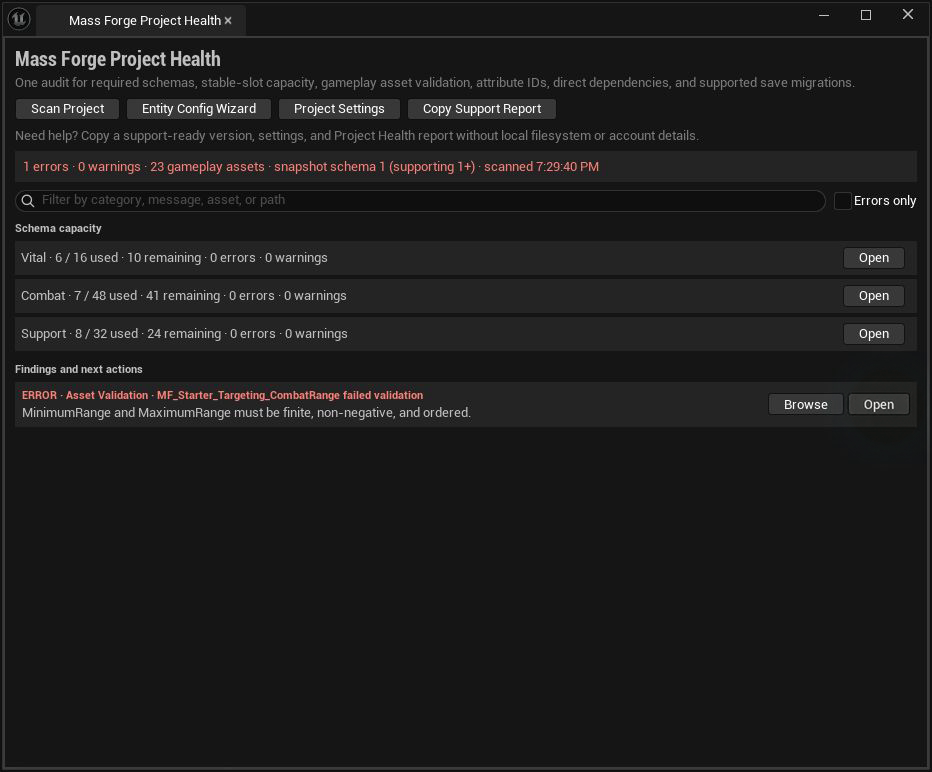
This deliberately invalid disposable asset sets its minimum range above its maximum. The finding names the asset, states the violated invariant, and exposes Browse and Open instead of leaving the user to search manually.
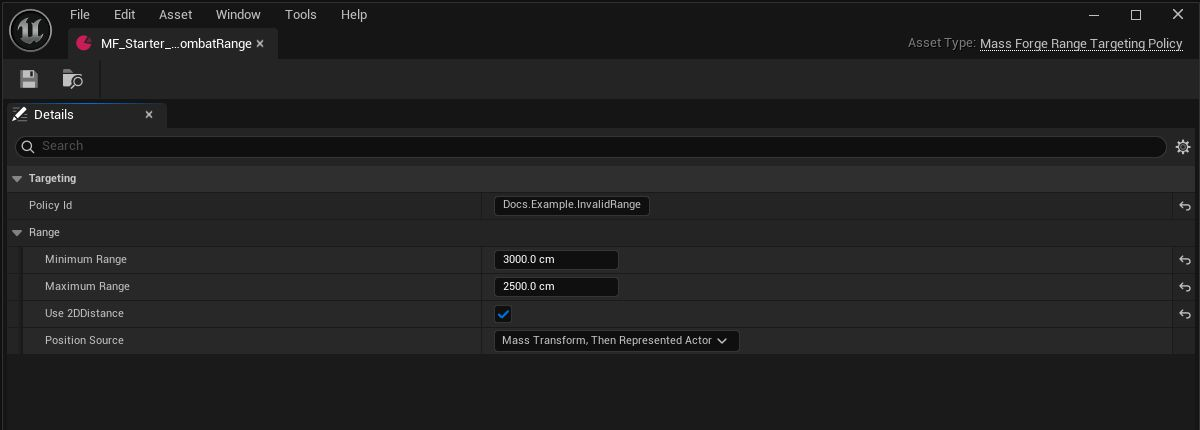
Selecting Open routes directly to the affected Data Asset. Correct the ordered range, save, then rescan until the dashboard returns to the green release-ready state shown above. The invalid asset existed only in the disposable documentation host.
Recommended release workflow
- Save every changed Mass Forge asset.
- Open Mass Forge Project Health and scan.
- Resolve every error and deliberately review each capacity or version-window warning.
- Run Unreal's project-wide Data Validation for non-Mass-Forge content and project-specific validators.
- Run the packaged project's automated tests and shipping build.
The dashboard complements Unreal Data Validation; it does not replace validators owned by the host project. It specifically adds cross-asset stable-ID uniqueness, schema resolution, conditional Attribute ID checks, stable-slot capacity, and migration-graph coverage that a single asset cannot prove in isolation.
Scope and performance
The asset scan is intentionally limited to /Game and configured schema paths. Plugin example assets are not treated as project configuration unless the project references them. The scan may synchronously load discovered Mass Forge assets because it is a deliberate editor command; no equivalent loading occurs in runtime modules.