
Appearance
Entity inspection guide
Mass Forge exposes a single presentation-neutral snapshot for building runtime debug widgets, editor tooling, logs, and automated diagnostics. It works for actorless Mass entities and represented entities, and it does not add a UObject to each entity.
Capturing an entity
Use Capture Mass Forge Entity Inspection with an FMFEntityHandle. For a represented entity, Capture Mass Forge Actor Inspection first resolves the Actor to its current generation-checked Mass handle.
The overall Result answers whether the entity could be inspected safely:
Success: the entity was valid and Mass was idle when the core snapshot was captured.Invalid World: the supplied world context has no usable Mass world.Invalid Entity: the handle is unset, stale, or the Actor has no represented Mass entity.Mass Is Processing: retry from a safe game-thread point after Mass processing finishes.
An overall success does not imply that every optional Mass Forge trait exists. Check the section results separately:
Attribute ResultGameplay Tag ResultAbility ResultPersistent Effect Result
For example, a valid entity without the Ability Trait still returns a useful snapshot of its attributes and tags while Ability Result reports Missing Ability Fragment.
Built-in sections
Attributes
Attributes contains every configured schema entry in stable domain and schema-slot order. Each row includes:
- stable domain/name identity;
- current value;
- display name and description;
- schema slot;
- optional minimum and maximum;
- whether the value currently sits at either bound.
This section uses the same finite-value and fragment validation as save snapshot capture. It never exposes unused fixed-array slots.
Counted Gameplay Tags
Gameplay Tags contains exact owned tags and their counts in lexical tag order. Parent-query expansion is intentionally not duplicated in the snapshot; use the existing hierarchical tag query when a UI needs to answer a specific parent-tag question.
Get Owned Gameplay Tags is also available independently of the inspector.
Abilities, active lifecycle, and cooldown groups
Abilities contains stable granted ability IDs, individual cooldown remaining time, compact stored charges, and scheduled charge-recovery time. Enumeration does not load definition assets. Because maximum charges and presentation text belong to the Ability Data Asset rather than the fragment, consumers that need those fields should resolve the ID through their own ability catalog.
Active Cooldown Groups contains only named groups whose remaining time is positive. Both arrays use lexical ID ordering. Get Granted Abilities and Get Active Cooldown Groups are available as standalone subsystem calls.
Active Ability Lifecycle reports No Active Ability while idle. During a cast/channel it includes the definition ID, target entity, phase, remaining phase time, completed channel-pulse count, and whether the atomic activation transaction has committed. This state is also available through Get Active Mass Forge Ability Lifecycle for entity handles and represented Actors.
Persistent effects
Persistent Effects contains the public state for each visible instance, ordered by monotonically assigned handle ID. It includes effect and stack identity, duration, next period, completed periods, granted/classification tags, stack count, strength, and persistent attribute-modifier count.
Adding project-specific “mind” data
Implement Mass Forge Entity Inspection Provider on a long-lived world object such as a manager Actor or Actor Component, then register it with Register Mass Forge Inspection Provider. Its execution result distinguishes success, an invalid world/provider, a missing interface, an already registered provider, and exhausted capacity. Unregistration separately reports a provider that was never registered; do not infer either operation's outcome from the provider count.
The provider returns custom sections. A section has:
- a stable
Provider Idnamespace; - a stable
Section Idwithin that namespace; - a localized display name;
- a sort order;
- label/value fields with stable keys and sort orders.
Example sections might be AI.Intent, AI.Target, Faction.Relationship, or a project-owned utility planner trace. Providers are held weakly, so registration does not extend their lifetime. Unregister them during teardown when practical; expired providers are ignored automatically.
Provider output is bounded to protect debug tools from accidental growth:
- 16 registered providers per world;
- 32 accepted custom sections per snapshot;
- 64 accepted fields per section.
Sections missing either stable ID, duplicate provider/section identities, missing or duplicate field keys, and excess entries are omitted. The snapshot reports truncation plus discarded section and field counts. Core Mass Forge sections are never displaced by custom output.
Custom providers run only after the core snapshot has been captured. Keep provider queries side-effect free. A provider mutation cannot retroactively change the core values already stored in that snapshot.
UI guidance
Mass Forge includes an editor-only Mass Forge Entity Inspector tab. Open it from Tools > Debug > Mass Forge Entity Inspector.
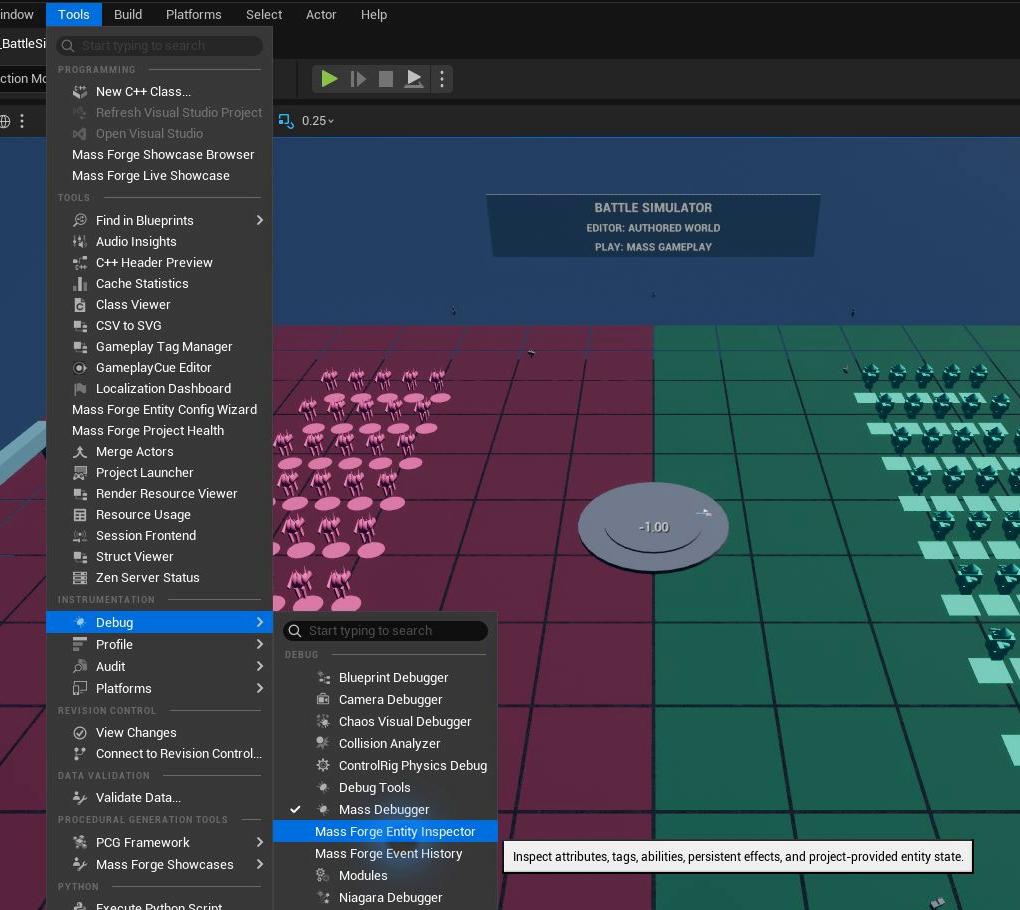
Open the inspector after entering Play in Editor so the tab can select the active PIE or game-preview world.
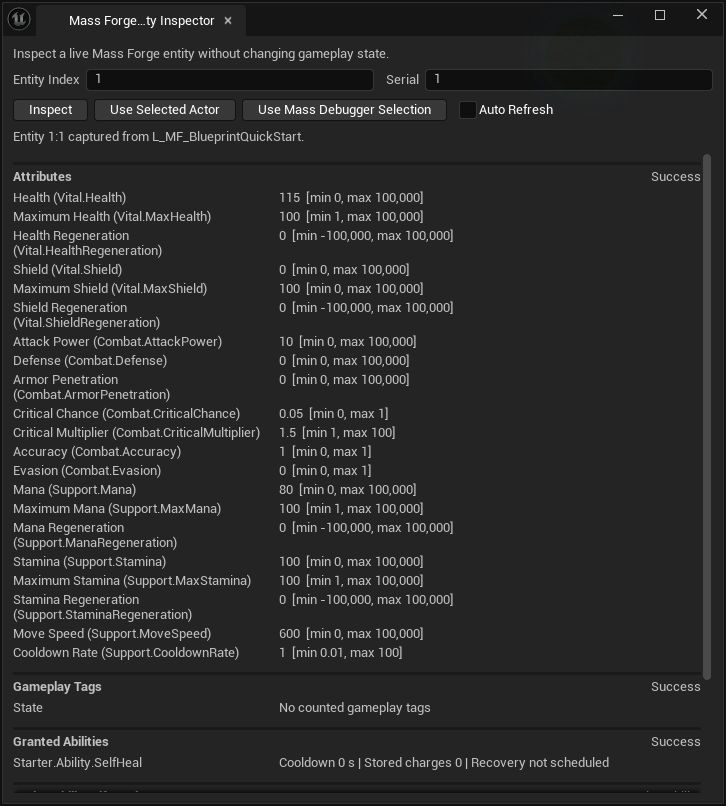
The header records the exact Index:Serial handle and source map. Attribute rows show the resolved identity, current value, and authored bounds; the ability section shows compact runtime ownership state.
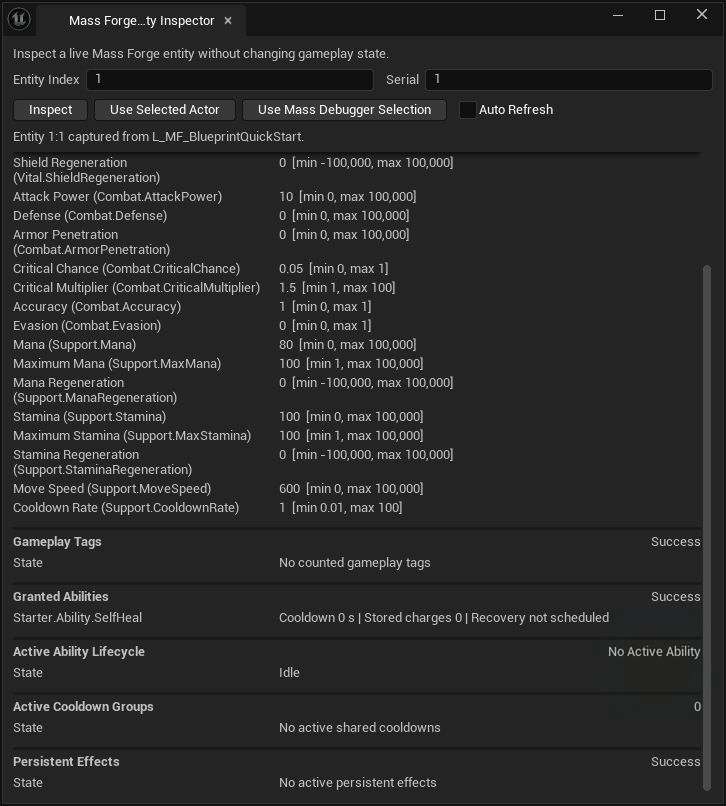
An idle entity still reports each supported subsystem explicitly. During gameplay these sections expose counted tags, cooldowns, active lifecycle state, and persistent instances without adding debug fragments to the entity.
The tab supports three lookup paths:
- Select a represented Actor in the editor or during PIE and choose Use Selected Actor. The inspector resolves the Actor's generation-checked entity handle and uses that Actor's world.
- Select an actorless or represented entity in Unreal's Mass Debugger and choose Use Mass Debugger Selection. The inspector reads the full selected index/serial pair from the active world's entity manager.
- Enter an entity index and serial number, then choose Inspect. The inspector prefers the active PIE world, followed by game preview and editor worlds.
Enable Auto Refresh to update the chosen entity four times per second. The panel displays schema-enriched attributes, exact counted tags, granted ability runtime state, the active cast/channel and target, active shared cooldowns, persistent effects, and registered project-specific sections. Missing optional traits appear as section-level results instead of hiding the rest of a valid entity. Invalid or stale handles remain explicit failures.
The editor panel is a consumer of the public runtime snapshot, not a second source of truth. Its Slate and UnrealEd dependencies live in the separate MassForgeEditor module and are excluded from game targets. Projects can still build a compact UMG selected-entity panel, an in-world debug overlay, logs, or custom editor tools from the same Blueprint/C++ snapshot API.
Capture only on demand or at a modest refresh rate for selected entities. Do not inspect every entity every frame; simulation processors should continue using compiled attribute slots and fragments directly.
Event-history companion
The Entity Inspector remains a point-in-time view. Open Tools > Debug > Mass Forge Event History to record a bounded timeline, watch multiple entities, filter events, and reuse the selected Actor or Mass Debugger entity. The two tools consume the same runtime identities but keep current-state inspection separate from diagnostic history. See the gameplay event-history guide.