
Appearance
Entity Config wizard
The Mass Forge Entity Config Wizard creates a safe starting point for a project's Mass entities. Open it from Tools > Mass Forge Entity Config Wizard. It creates an ordinary Mass Entity Config, adds the selected Mass Forge traits, and can create and register only the global attribute schemas the project is missing.
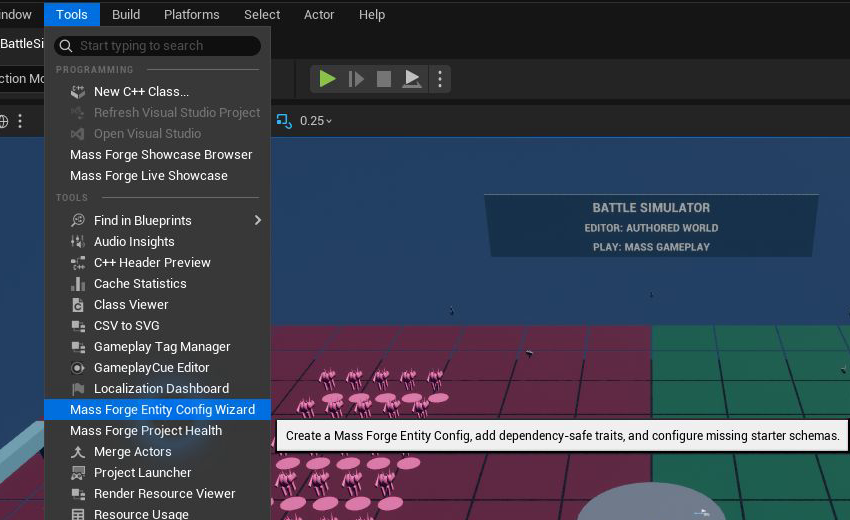
The wizard is available from Unreal's standard Tools menu after the plugin has loaded.
The wizard is an authoring shortcut, not a locked gameplay framework. Every generated schema and Entity Config remains normal editable Unreal content.
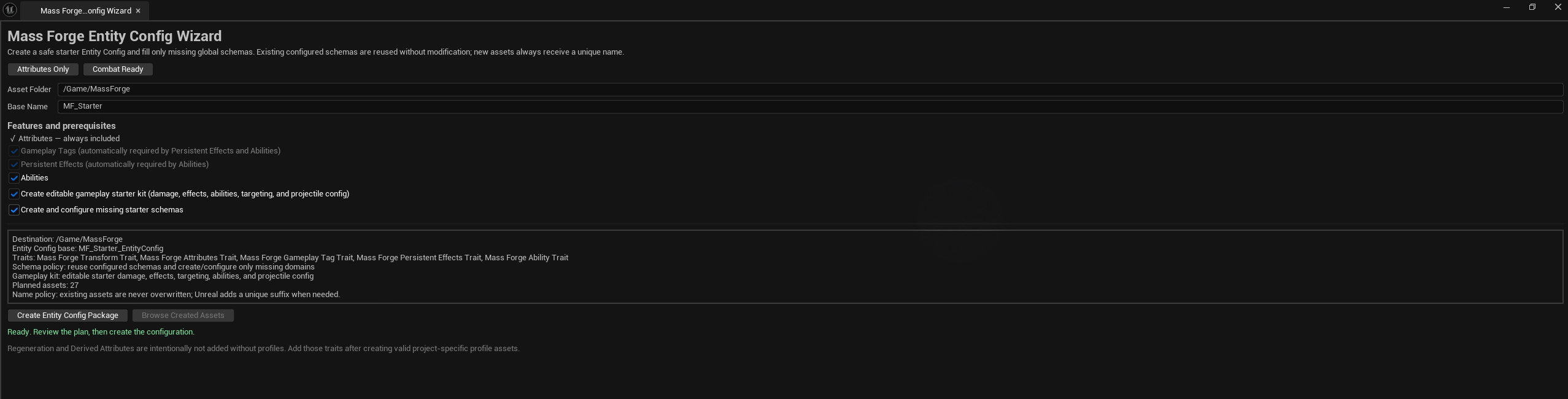
The live plan at the bottom is the exact package the wizard will create. Review it before selecting Create Entity Config Package; the wizard does not hide generated traits or assets behind a private framework.
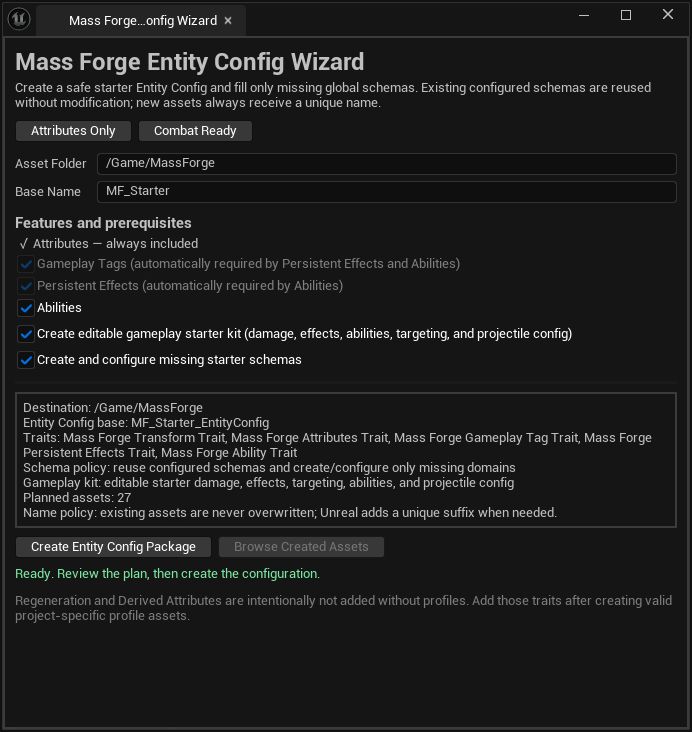
For the broad Blueprint starter path, choose Combat Ready, keep the starter kit and missing-schema options enabled, then review the destination and planned assets before creation.
Choose a preset
- Attributes Only adds Mass Forge Transform Trait and Mass Forge Attributes Trait. Use it for projects that need Blueprint spawning, targeting, placement, named stats, and resource values.
- Combat Ready adds Mass Forge Transform Trait, Mass Forge Attributes Trait, Mass Forge Gameplay Tag Trait, Mass Forge Persistent Effects Trait, and Mass Forge Ability Trait. This is the broadest dependency-safe starter configuration.
- The individual feature checkboxes support configurations between those presets.
The Combat Ready preset also enables an editable gameplay starter kit: four damage formulas, four instant effects, four persistent effects, a reusable range policy, four representative abilities, and a Transform + Projectile Entity Config. Disable the starter-kit checkbox when only the base Entity Config and schemas are wanted.
Attributes are always present. Selecting Persistent Effects also selects Gameplay Tags. Selecting Abilities also selects Persistent Effects and Gameplay Tags. The dependency checkboxes show this closure and cannot be disabled while a selected feature requires them.
The Transform Trait adds Unreal's standard FTransformFragment; it does not introduce a competing movement system. The Blueprint Spawn Mass Forge Entity/Entities nodes require this fragment so a successful spawn always receives the requested world transform. Projects that create configs manually can add the same trait or supply the standard transform fragment through another project-owned trait.
Regeneration and Derived Attributes are deliberately excluded from both presets because those traits require valid project-specific profile assets. Create and validate the appropriate profile first, then add its trait to the generated Entity Config.
Create the package
- Choose an Asset Folder beneath
/Game. The default is/Game/MassForge. - Enter a Base Name. Invalid object-name characters are sanitized, and an empty result is rejected.
- Choose a preset or enable the desired features.
- Leave Create editable gameplay starter kit enabled for a complete Blueprint-ready combat baseline, or disable it for only schemas and an Entity Config.
- Leave Create and configure missing starter schemas enabled for a first-time setup. Disable it when all three global schemas are already configured and the wizard should fail instead of creating missing content.
- Review the live plan, then select Create Entity Config Package.
The wizard never overwrites an asset. When a requested name already exists, Unreal assigns a unique suffix. A successful run selects every newly created asset in the Content Browser and opens the new Entity Config.
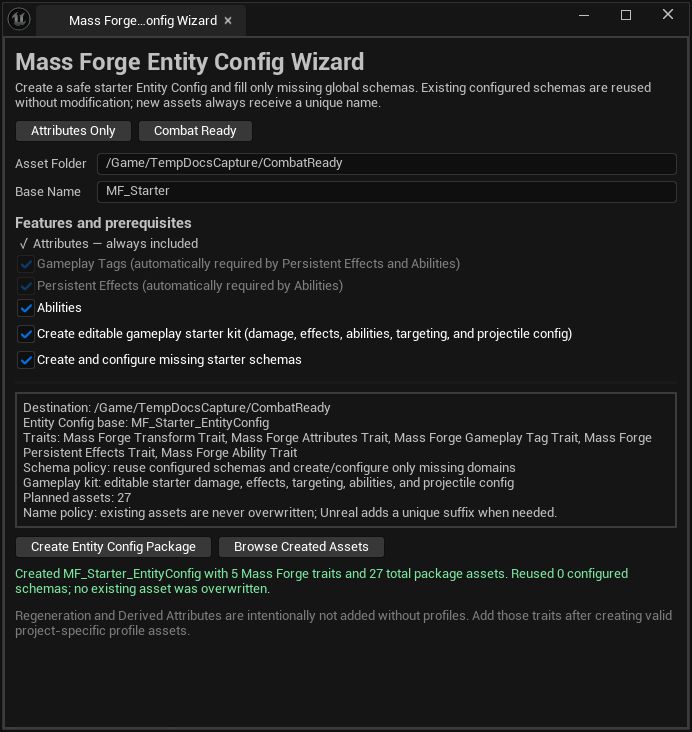
Stop and read the result banner: it states what was created, how many assets were produced, whether schemas were reused, and that no existing asset was overwritten.
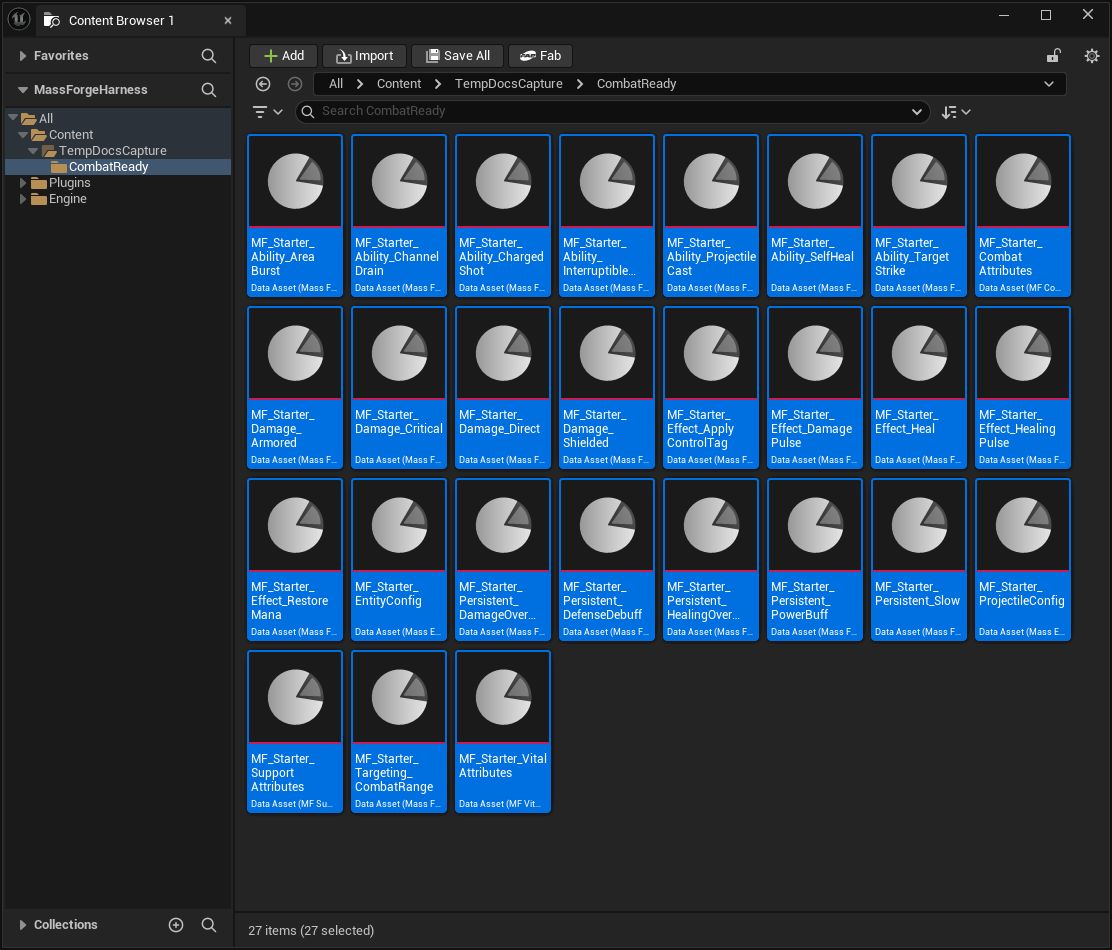
The generated package is visible project Content, not hidden runtime state. The selected assets include schemas, definitions, effects, abilities, targeting, and both entity configs.
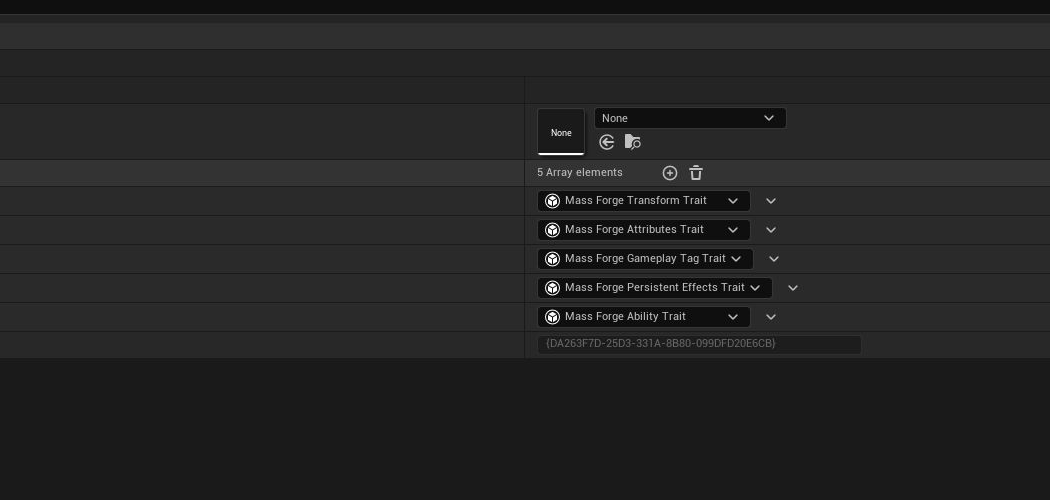
Open the Entity Config and verify the trait closure. The standard Transform trait supports spawning and targeting; the four gameplay traits opt the entity into the Mass Forge systems selected by the preset.
Schema behavior
The project has one configured schema per Vital, Combat, and Support domain. The wizard resolves each domain independently:
- A configured schema is reused without changing its entries.
- A missing schema is created only when Create and configure missing starter schemas is enabled.
- Newly created schemas are saved and written to Project Settings > Mass Forge > Global Attribute Schemas.
- If creation of missing schemas is disabled, the wizard checks all three domains before creating any asset.
The starter entries are deliberately general-purpose templates:
- Vital: Health, MaxHealth, HealthRegeneration, Shield, MaxShield, ShieldRegeneration.
- Combat: AttackPower, Defense, ArmorPenetration, CriticalChance, CriticalMultiplier, Accuracy, Evasion.
- Support: Mana, MaxMana, ManaRegeneration, Stamina, MaxStamina, StaminaRegeneration, MoveSpeed, CooldownRate.
Every starter entry has a stable in-range slot, display metadata, a finite default, and an appropriate initial clamp policy. See the starter attributes guide for units, bounds, and a rename/migration example. These names are optional examples, not mandatory conventions or a hidden combat formula. Review them before authoring dependent abilities, effects, damage definitions, UI, or saved data.
Customization and persistence
Open a generated schema to use the Mass Forge Schema Overview. Add, remove, or replace starter attributes before the project ships. Once snapshots have been released, changing an attribute Name or moving it to another domain changes its persistent identity and requires a schema-version increment plus a migration asset. Slot repair preserves identity and does not require a migration.
See SCHEMA_EDITOR_GUIDE.md for validation and slot repair, and PERSISTENCE_GUIDE.md before changing released identities.
Failure and recovery
Invalid Content paths, empty base names, and disallowed missing schemas fail before asset creation. Later editor failures report whether asset creation, saving, or project-settings persistence failed. Successfully created assets are kept so work is not silently discarded; use Browse Created Assets to inspect them, correct source-control or save conditions, and either finish configuration manually or run the wizard again. A repeat run remains safe because names are uniqued and traits are added idempotently.
First verification
After generation:
- Open each new schema and confirm its overview has no blocking diagnostics.
- Review or replace the starter names, bounds, defaults, and descriptions.
- Open the Entity Config and configure starting abilities or initial Gameplay Tags where needed.
- Add validated Regeneration or Derived Attribute profiles only if the project uses those systems.
- Spawn a test entity and use the Mass Forge Entity Inspector to confirm the expected fragments and initial values.
- Open Mass Forge Project Health, rescan, and resolve every schema, reference, and migration error.
- Run Unreal content validation before packaging a release.